


Open Outlook
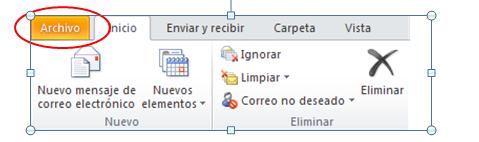
Ir a la pestaña de “Archivo”
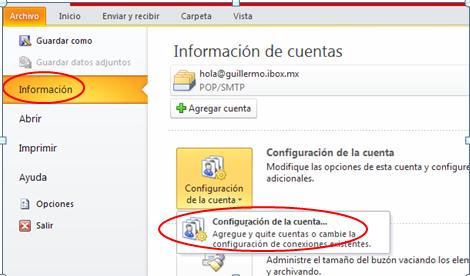
We select information and click on account settings.
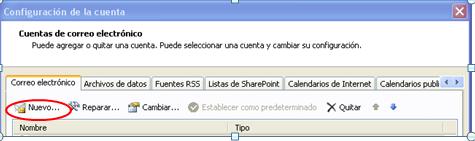
In the new window that will appear, we must click on the "New ..." button.
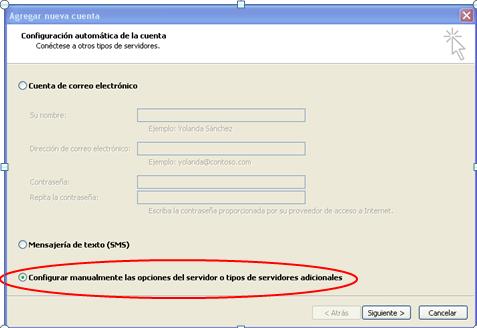
Seleccionamos la opción de “Configurar manualmente las opciones del servidor”.
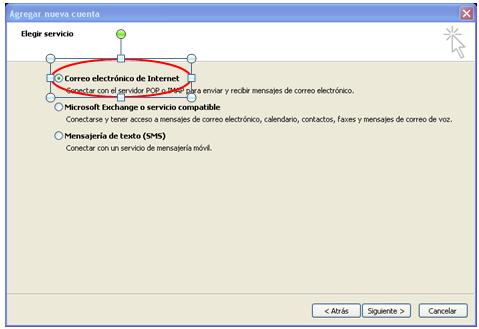
Ahora seleccionamos la opción de “Correo electrónico de Internet”.
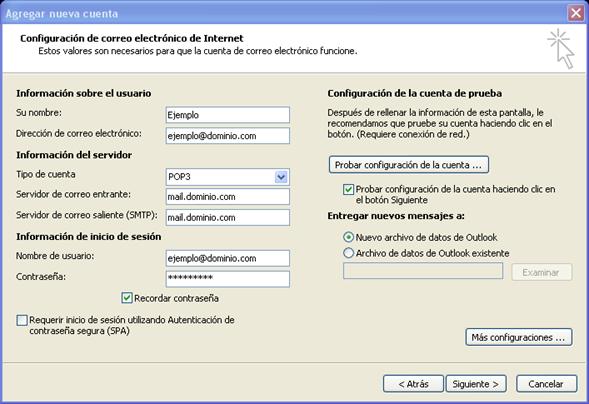
We will fill in each field with the data provided by your service providers.
In this case it corresponds to KIUBIX clients, you can see the full size image by clicking on it.
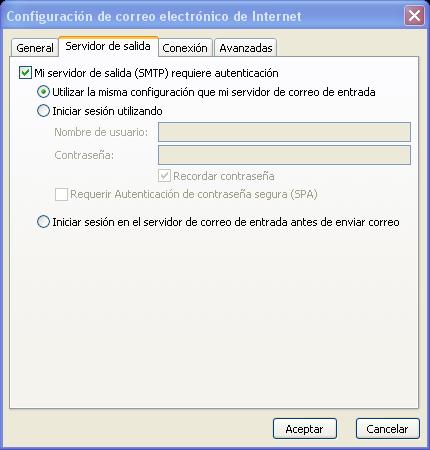
Damos clic en el botón de “Más configuraciones”, vamos a la pestaña de “Servidor de salida” y ponemos palomita en la opción “Mi servidor de salida (SMTP) requiere autenticación)”.
Ahora vamos a la pestaña “Avanzadas” y colocamos los siguientes números:
POP3: 110
SMTP: 587

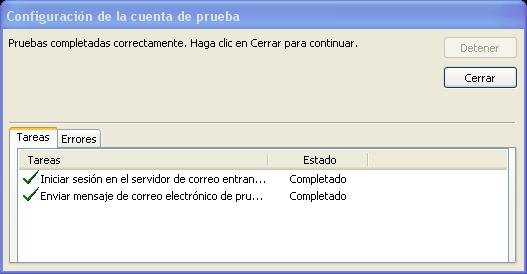
Damos clic en “Aceptar” y damos clic en “Probar configuración de la cuenta” nos mostrara un recuadro donde nos indica que la prueba se ha realizado con éxito.
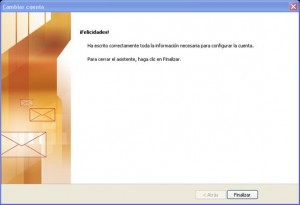
Now we just finish and our account will be configured in Outlook












Hello, good afternoon, days ago I asked to activate some email accounts and these have already been delivered to me, I only need to activate an account that is [email protected]
Thank you very much, have a great afternoon!